
 Polski


 Contact
 ul. Słowackiego 8
 sklep@katemedia.pl
 +48 570 025 000
KATEMEDIA · REPAIR GUIDE
Pairing Replacement Parts with iPhone
Genuine used displays and batteries. Choose your iPhone series, then check whether the replacement display came with its upper flex cable. This guide will show you the correct sequence of steps.
Why pair a replacement part?
With the iOS 18 update in 2024, Apple made it possible to pair genuine iPhone parts, whether purchased directly from Apple or sourced second-hand from disassembled phones or refurbished parts. Pairing lets you complete the repair and remove messages such as “Unknown Part” and “Important Message”.
Because we sell and refurbish genuine used parts, this guide focuses on pairing them using Repair Assistant.
DIAG stands for “DIAGNOSABLE”. We use this label for parts that can be paired. It applies to eligible parts for iPhone 12 and later. Check the label on the individual product page.
Before you begin — meet every requirement
Check every item before pairing the part. If any requirement is not met, prepare the phone before starting the process.
STEP 1 OF 2 · CHOOSE YOUR MODEL
Which iPhone series are you repairing?
Select the series. In the expanded section, compare the upper flex cable and choose the option that matches your display.
SERIES 12, 13, 14 iPhone 12–14Two procedures: a display with its upper flex cable and a display without it.
Compare the display you received with the photo, then open only the one procedure that applies:
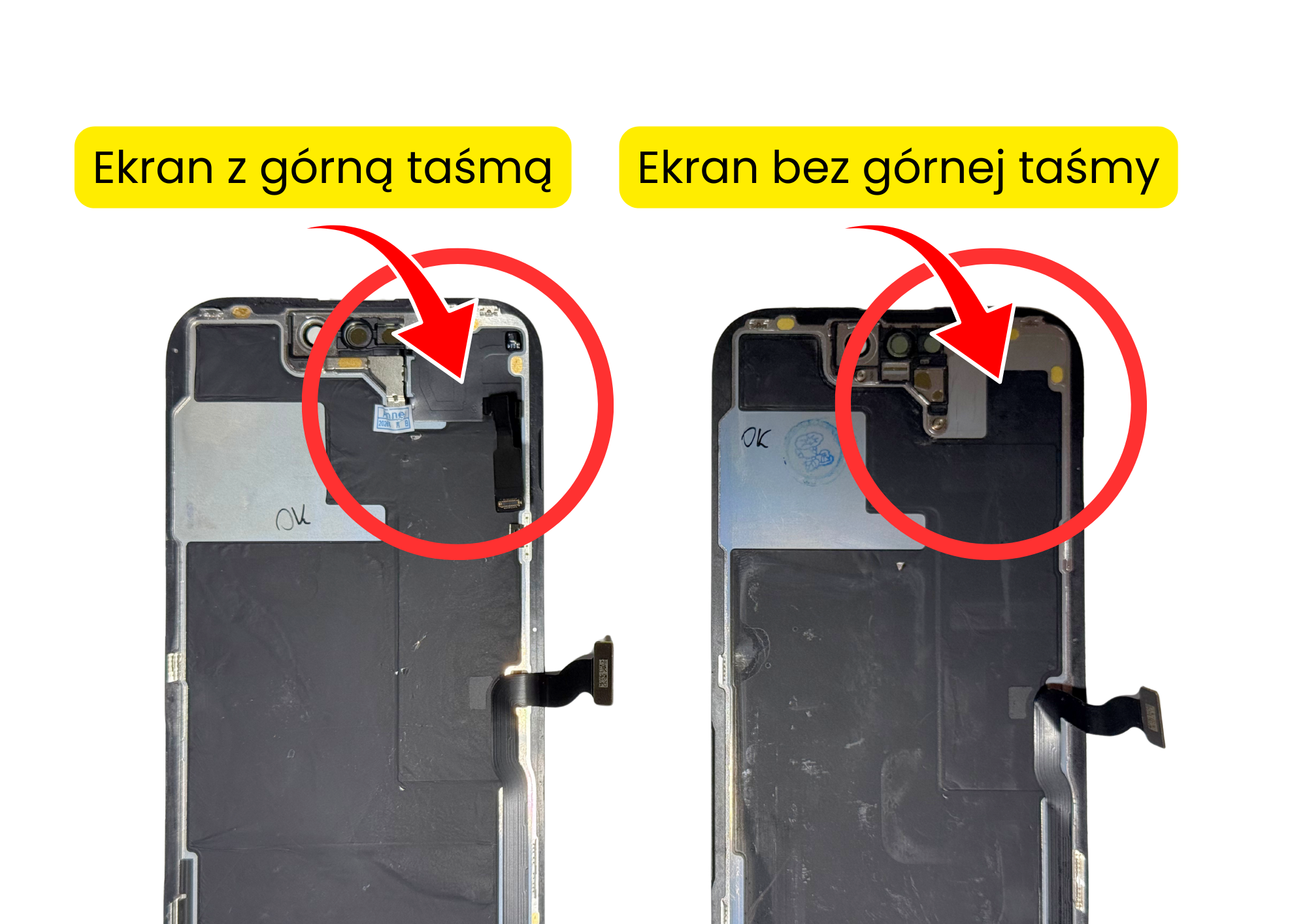
CABLE INCLUDEDDisplay with upper flex cable Pair the display with the upper flex cable supplied with it.
Before doing anything else, connect only the display and touch flex cables. Do not connect the upper flex cable, even if it is attached to the display. For 15 minutes , check the image and touch response across the entire display.
Without the upper flex cable connected, the phone will restart every few minutes. This is normal in this configuration — continue testing after it starts up again.
Proceed to the next step only after confirming that the display works correctly.When starting Repair Assistant, connect: the replacement display and the upper flex cable supplied with that display.
After the test, turn off the phone and connect the replacement display together with its own upper flex cable. Do not use the cable from the old display.
Start Repair Assistant from Settings or using the button combination and complete the process.
Finally, check for the “Used” entry for the display in Parts and Service History.
NO CABLE INCLUDEDDisplay without upper flex cable Pair the display alone first; transfer the old cable afterwards.
Before doing anything else, connect only the display and touch flex cables. Do not connect the upper flex cable, even if it is attached to the display. For 15 minutes , check the image and touch response across the entire display.
Without the upper flex cable connected, the phone will restart every few minutes. This is normal in this configuration — continue testing after it starts up again.
Proceed to the next step only after confirming that the display works correctly.When starting Repair Assistant, connect: the replacement display alone, without an upper flex cable; you will transfer the cable from the old display later.
After the test, leave only the replacement display connected, without the upper flex cable.
Start Repair Assistant from Settings or using the button combination and complete the process.
Once pairing is complete, turn off the phone.
Transfer the upper flex cable from the old display to the replacement display.
Connect all flex cables and reassemble the phone.
Finally, check for the “Used” entry for the display in Parts and Service History.
SERIES 15 AND LATER iPhone 15 and laterTwo procedures; a display without the cable requires a programmer.
Compare the display you received with the photo, then open only the one procedure that applies:
From iPhone 15 onwards, used parts are checked for iCloud lock. A part still linked to someone else’s account cannot be paired. Check for the DIAG label on the product page. We use this label for eligible parts for models 12–14 too.
CABLE INCLUDEDDisplay with upper flex cable Pair the display with the cable supplied with it.
Before doing anything else, connect only the display and touch flex cables. Do not connect the upper flex cable, even if it is attached to the display. For 15 minutes , check the image and touch response across the entire display.
Without the upper flex cable connected, the phone will restart every few minutes. This is normal in this configuration — continue testing after it starts up again.
Proceed to the next step only after confirming that the display works correctly.When starting Repair Assistant, connect: replacement display + the cable supplied with that display.
After the test, turn off the phone and connect the replacement display and its own upper flex cable. Do not transfer the cable from the old display.
Start Repair Assistant from Settings or using the button combination and complete the process.
Finally, check for the “Used” entry for the display in Parts and Service History.
NO CABLE INCLUDEDDisplay without upper flex cable A programmer and the old cable are required before starting Repair Assistant.
Before doing anything else, connect only the display and touch flex cables. Do not connect the upper flex cable, even if it is attached to the display. For 15 minutes , check the image and touch response across the entire display.
Without the upper flex cable connected, the phone will restart every few minutes. This is normal in this configuration — continue testing after it starts up again.
Proceed to the next step only after confirming that the display works correctly.When starting Repair Assistant, connect: replacement display after writing the data + the upper flex cable from the old display.
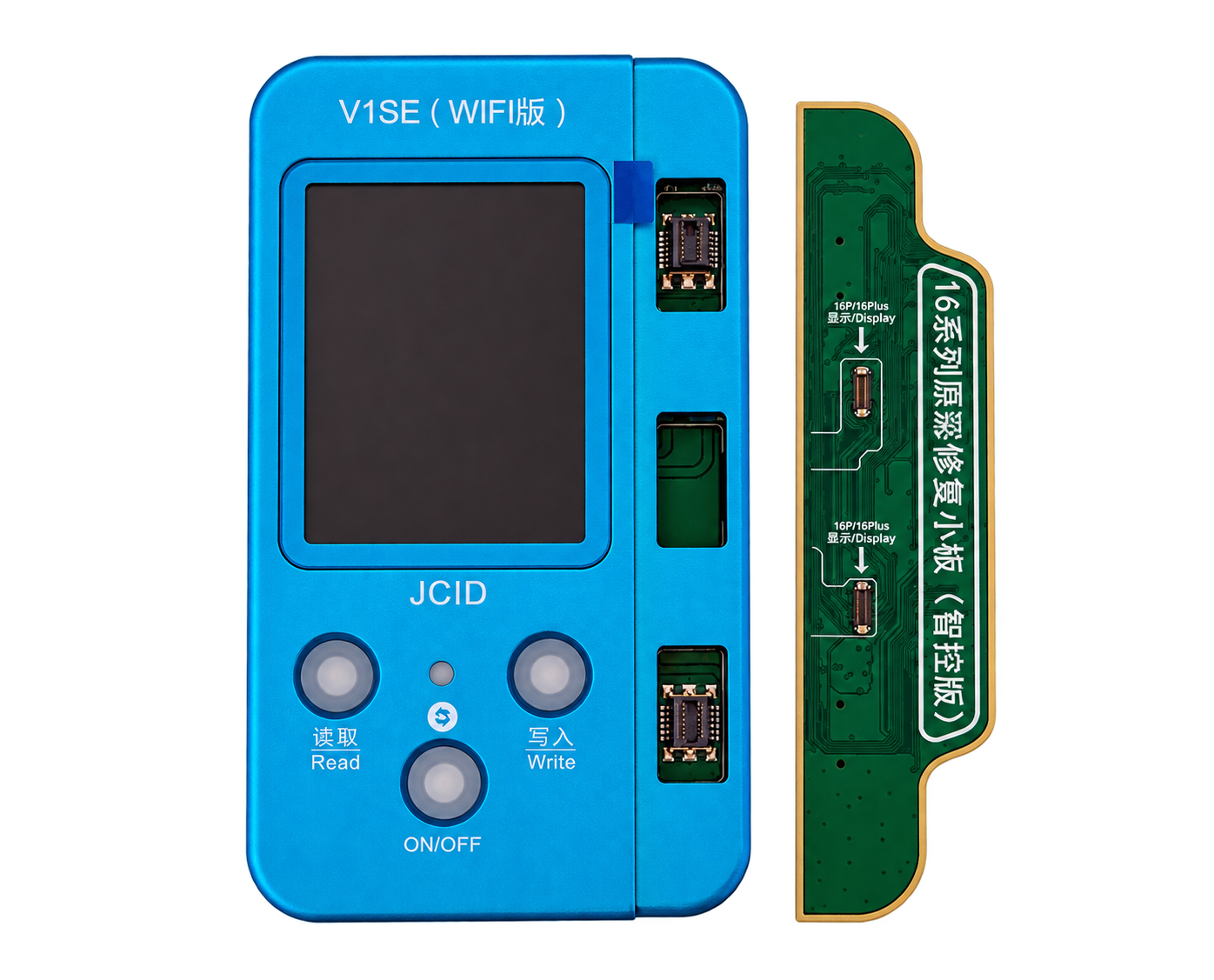
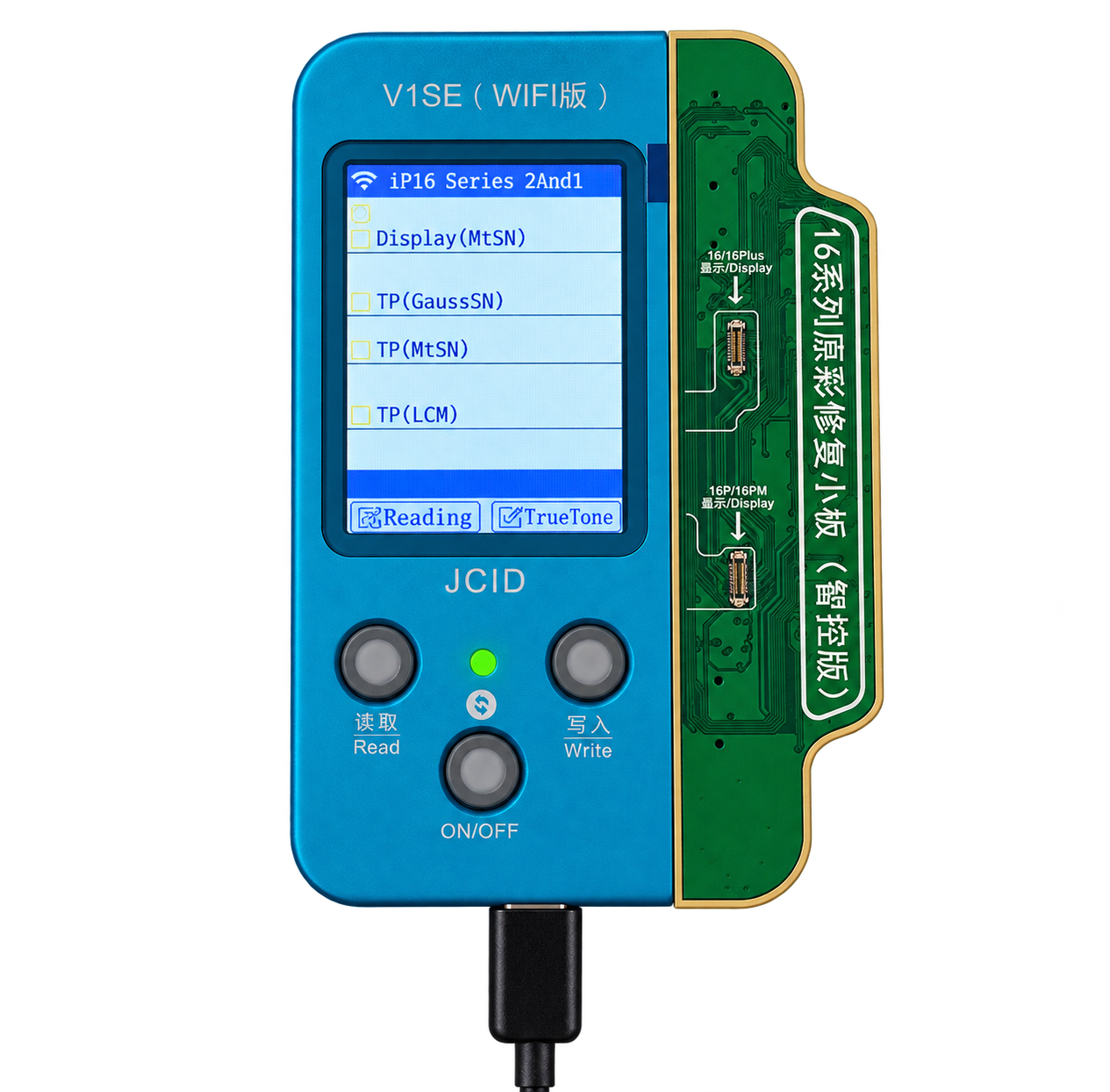
Once the display passes the test, use the programmer to read the data from the old display.
Use the programmer and True Tone module to write the saved data to the replacement display.
Connect the replacement display together with the upper flex cable transferred from the old display.
Only now start Repair Assistant from Settings or using the button combination and complete the process.
Finally, check for the “Used” entry for the display in Parts and Service History.
Follow this order carefully. Do not start Repair Assistant with the display alone. Reconnecting the upper flex cable afterwards will cause an error and block the ability to pair that display correctly.
Pairing a battery? Open the battery procedure ↓
Pairing a battery Installing a battery? Open this shorter procedure.
Meet the phone preparation requirements: current iOS, at least 20% battery charge, stable Wi-Fi and genuine remaining components.
Install the battery in the phone.
Start Repair Assistant from Settings or using the button combination and complete the process.
Check the battery entry in Parts and Service History.
We offer batteries that appear as “Genuine Part” or “Used Part” in Parts and Service History. The difference between these options is the wording shown in that history.
Repair Assistant screenshots See how to start the process, what happens next and the final entry.
These photos show the common stage after preparing the part according to your selected procedure. The screenshots show the Polish interface; the captions provide the English meaning of each step.
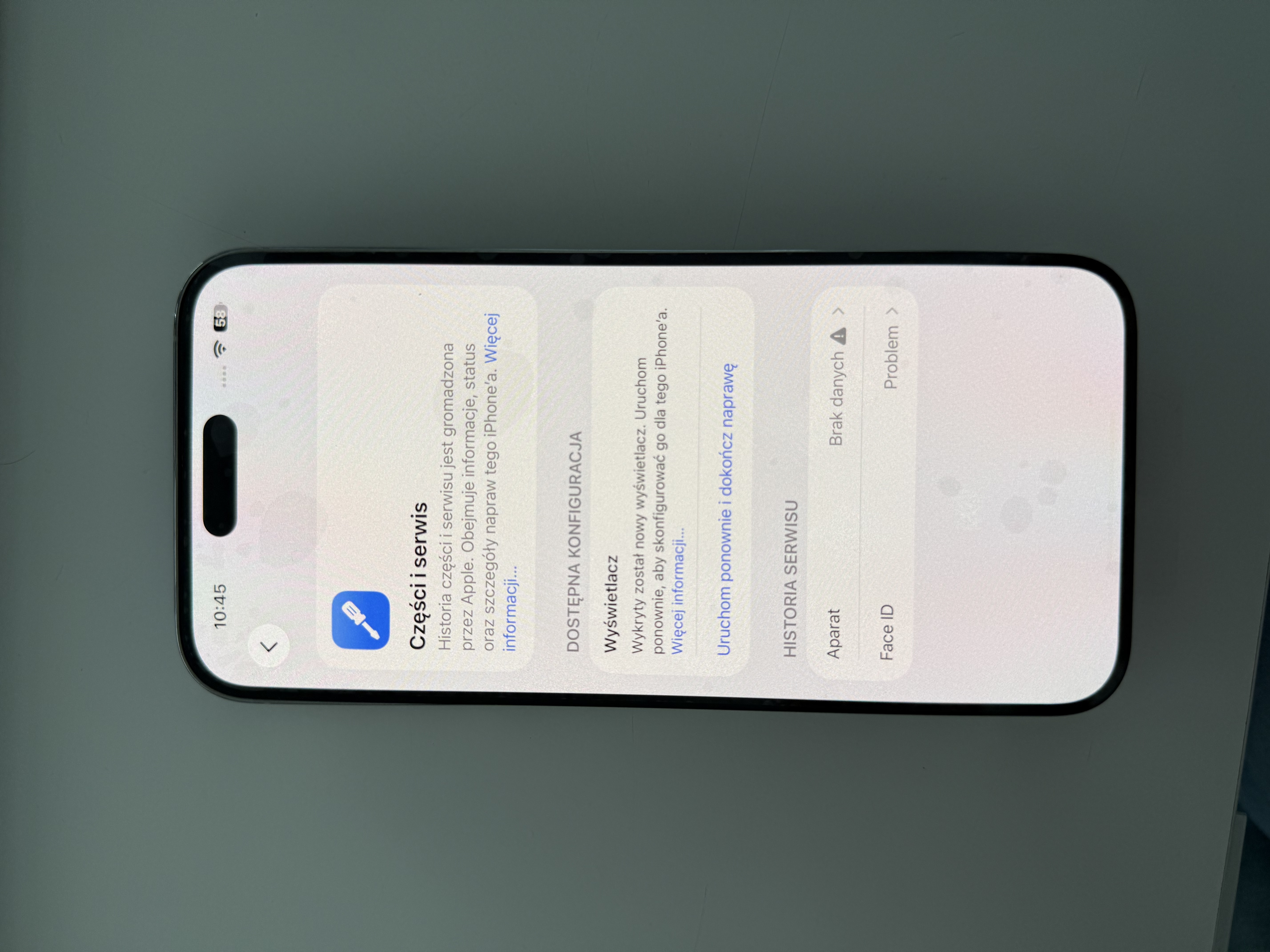
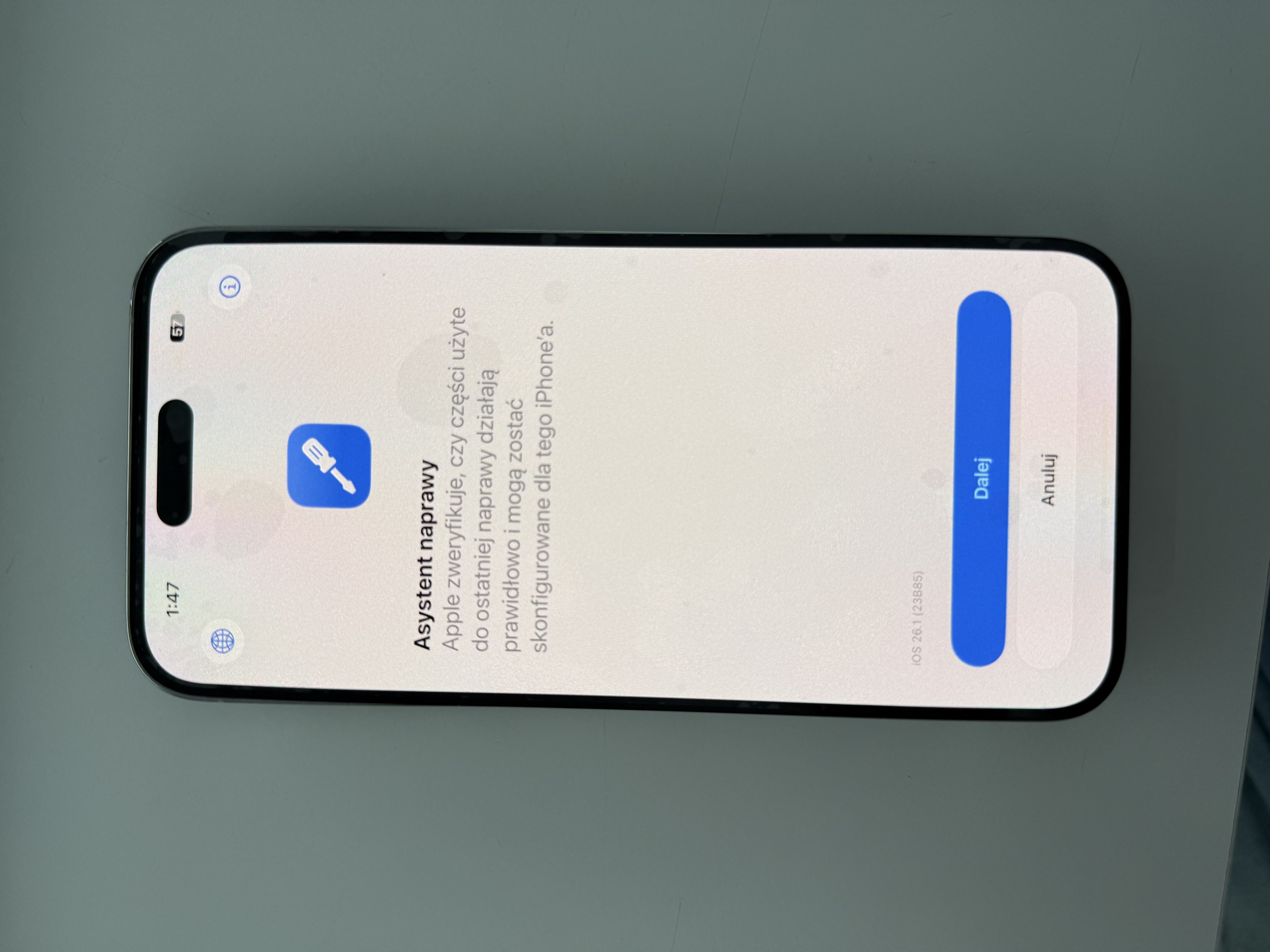
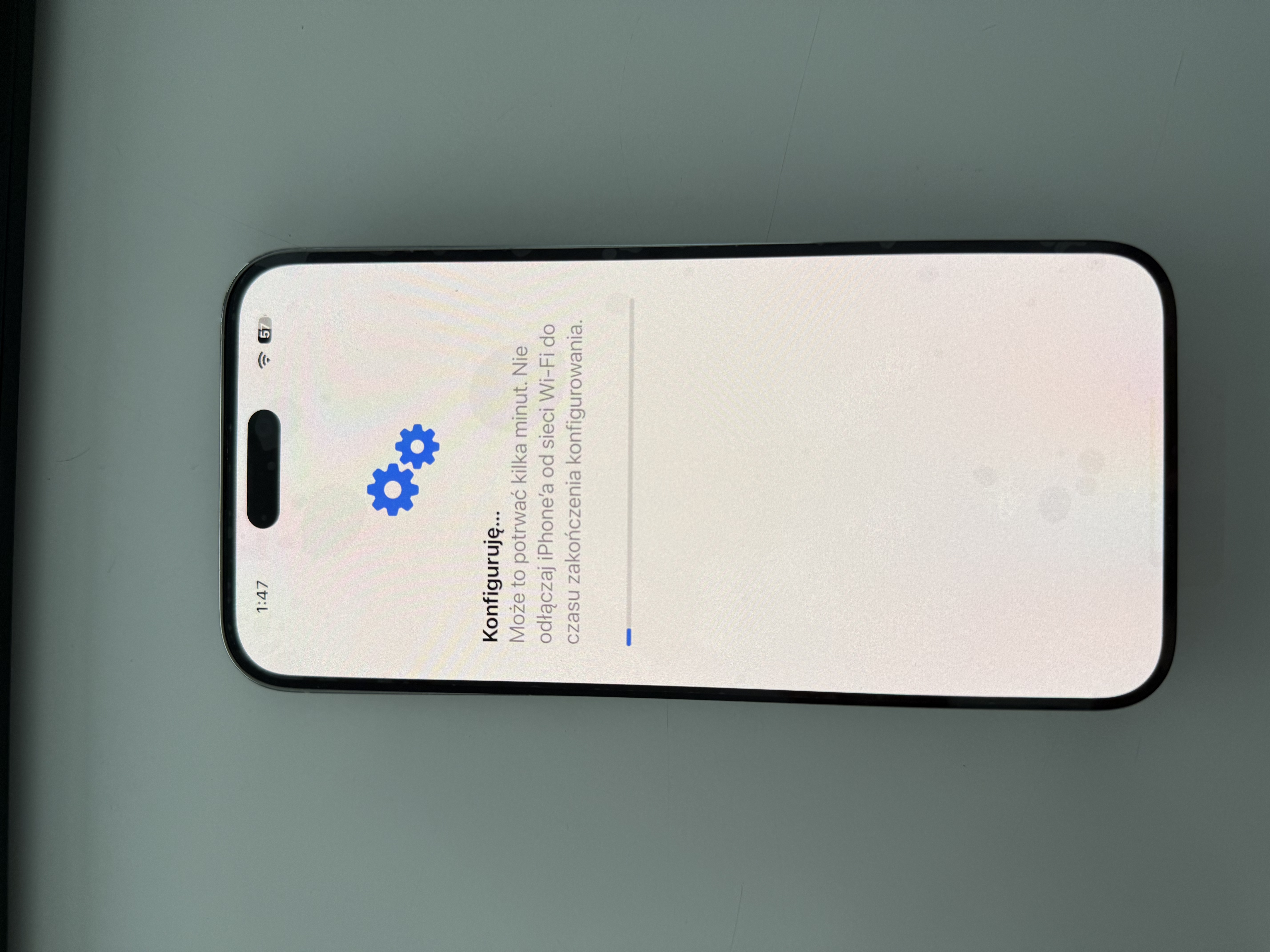
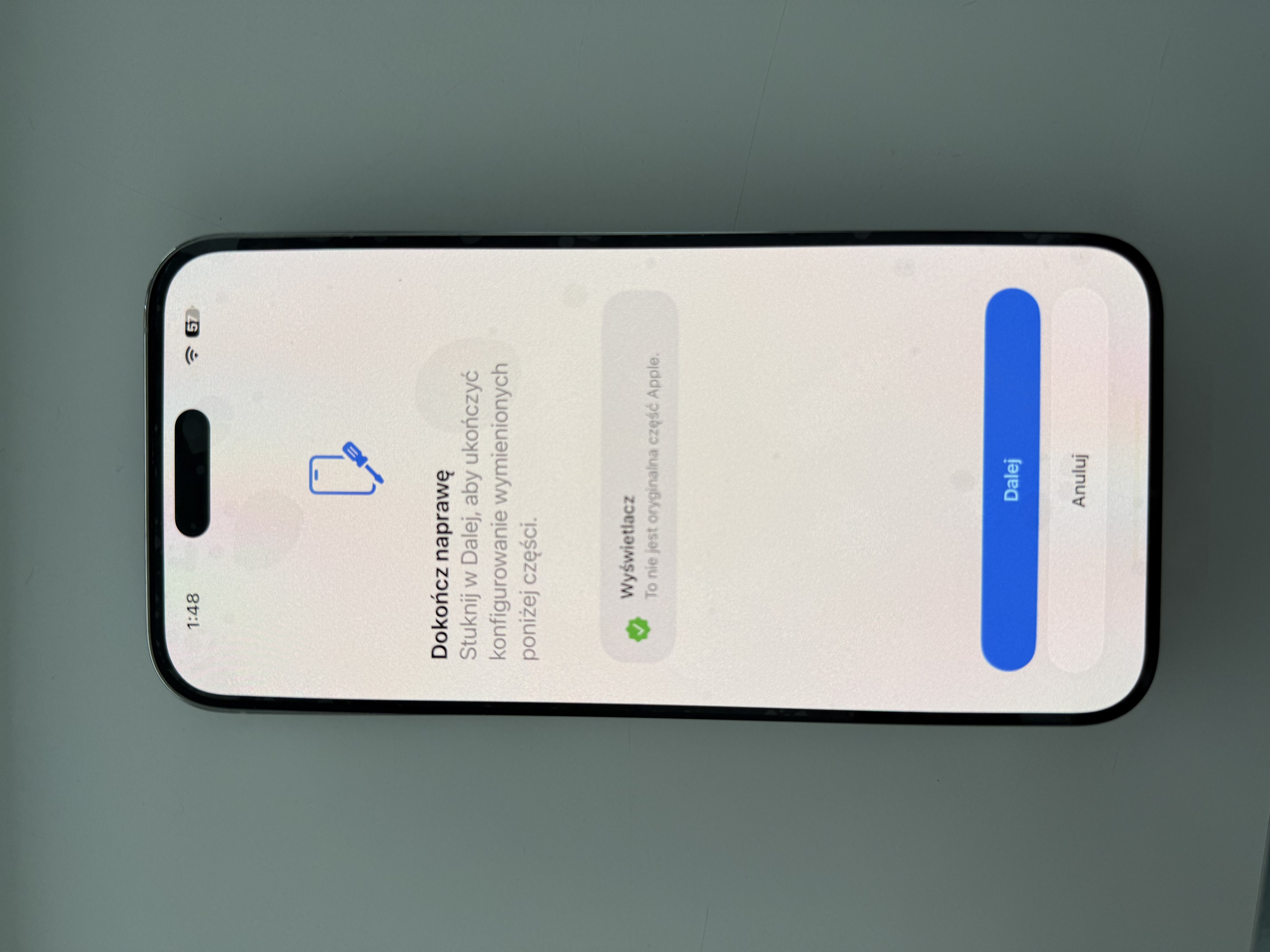
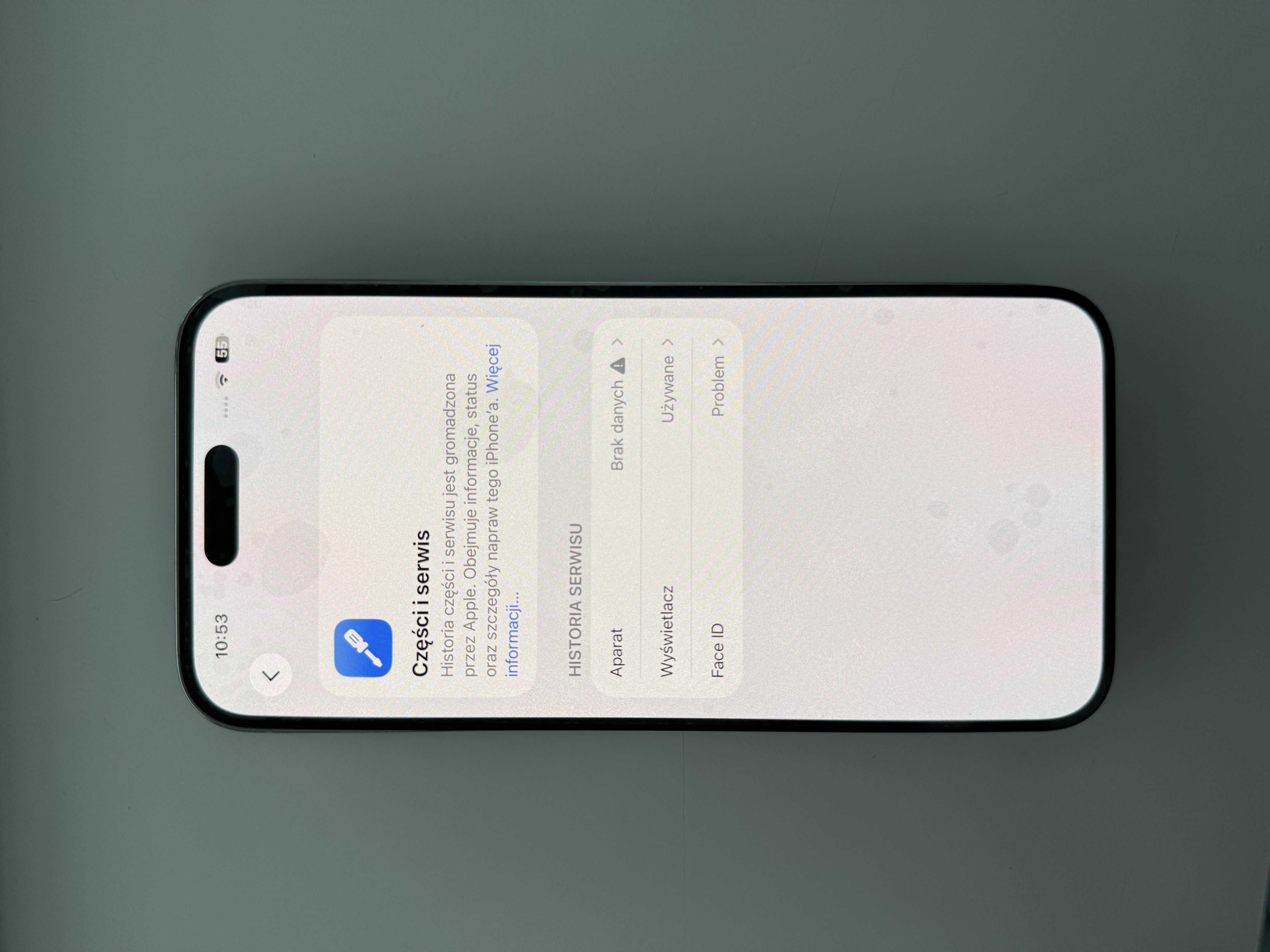
A green check mark next to the display means everything is correct at this stage. The accompanying Polish text “To nie jest oryginalna część Apple” (“This is not a genuine Apple part”) is a known translation error. Select “Dalej” (“Continue”), finish the process and check that the final entry says “Used”.
How to start Repair Assistant
Choose the starting method given in the procedure for your part.
From the phone’s Settings When the iPhone displays an option to finish the repair.
After preparing and installing the part, open the part information in Settings.
Select “Restart and Finish Repair” and follow the instructions in Repair Assistant.
Using the button combination If Repair Assistant cannot be started from Settings.
Turn off the iPhone.
Press and hold both volume buttons at the same time.
While holding both buttons, connect the phone to a fast charger.
Release the buttons when the Apple logo appears.
Model and part compatibility table Check which components can be paired in each series.
| Series | Display | Battery | Rear camera | Front camera | Back glass | Housing | Touch ID |
|---|---|---|---|---|---|---|---|
| iPhone SE 3 | — | ✓ | — | — | — | — | ✓ |
| iPhone 12 | ✓ | ✓ | ✓ | — | — | — | — |
| iPhone 13 | ✓ | ✓ | ✓ | — | — | — | — |
| iPhone 14 | ✓ | ✓ | ✓ | — | — | — | — |
| iPhone 15 | ✓ | ✓ | ✓ | — | ✓ | — | — |
| iPhone 16 and later | ✓ | ✓ | ✓ | ✓ | ✓ | ✓ | — |
✓ Yes · — No. Swipe the table sideways on a phone to view every column. Check the product page for its DIAG label.
Katemedia repair guide